Sending payment reminders (automatic and manual)
If an invoice remains unpaid after the due date, NumNum can automatically remind your customer, or you send a reminder yourself at a moment of your choosing. Both use the same reminder texts, which you fully control.
Setting up automatic reminders
- Go to Settings → Emails and scroll to Automatic reminder settings
- Tick Activate automatic reminders
- Set the timing per reminder: On the due date or a number of days after the due date
- Write the subject and message for each reminder, per language (NL/FR/EN/DE), so every customer receives the reminder in the language of their invoice
- Use + to add extra reminders; click Save
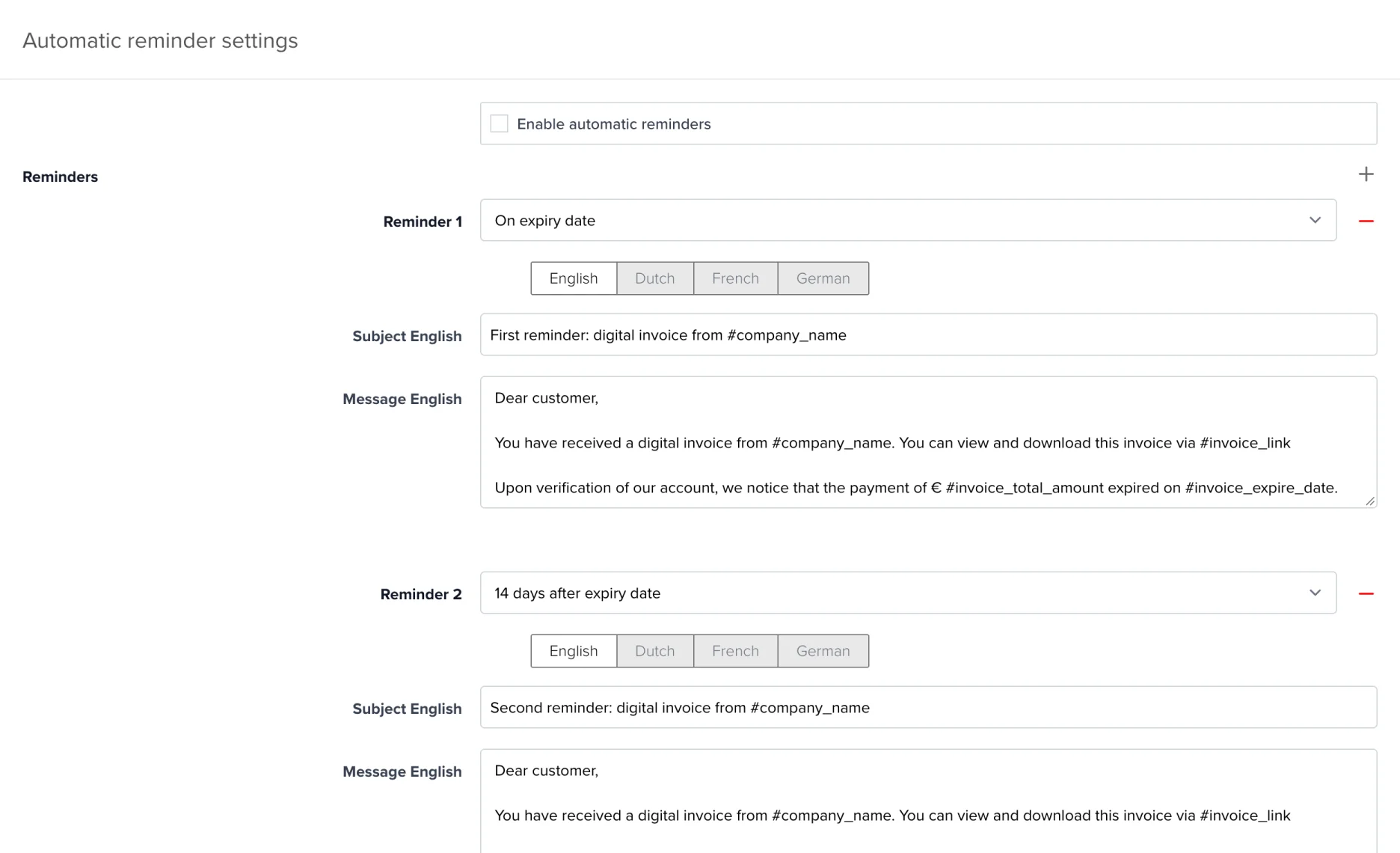
Three reminders are set up by default: on the due date, after 14 days and a final one after 31 days. You can fully customise the texts and timing.
In your texts you can use variables that are filled in automatically, such as #klant_bedrijf, #factuur_nummer, #factuur_vervaldatum, #factuur_totaalbedrag, #factuur_openbedrag, #factuur_link, #bedrijf_iban and #factuur_betaal_ref.
ℹ️ Automatic reminders are available depending on your subscription (included in the higher plans, as an add-on for smaller ones). Don’t see the settings? Contact help@numnum.be.
Enabling reminders per customer or per invoice
Besides the general setting, you also determine who receives reminders:
- Per customer: on the customer card, tab Document settings, tick Send an automatic reminder email to the customer. New invoices for that customer inherit this setting.
- Per invoice: in the invoice settings (gear icon) you can switch the Reminder option on or off for that single invoice.
When does an automatic reminder go out?
- Reminders are processed every morning. A reminder “on the due date” therefore goes out the next morning after the invoice has become overdue.
- The next reminder counts from the previous reminder: an invoice that has been overdue for a long time never receives several reminders at once, but goes through the series neatly, one by one.
- The reminder always goes by email (including for invoices you sent via Peppol) to the customer’s current email address (or the linked contact person). No PDF is attached; the customer opens the invoice via the View online button.
When is no reminder sent?
An invoice is automatically skipped if:
- it has not yet been sent to the customer (by email or Peppol), so a draft never gets a reminder;
- there is no open amount left (paid, or fully offset by payments/credit notes);
- it has been (partially) credited;
- the customer has no valid email address;
- the reminder for that step has already been sent (never twice).
💡 Want an overview? Enable the notification Automatic reminders summary under Settings → My account → Email notifications. You’ll then receive an overview each time of which reminders were sent and for which invoices it failed (with the reason).
Sending a reminder manually
For an overdue invoice you can send a reminder yourself at any time:
- Go to Invoices and find the overdue invoice (status Overdue)
- Open the action menu (⋮) next to the invoice and choose Send reminder
- Under Use text from, choose which reminder text to use (Reminder 1, 2, …); reminders that were already sent are marked
- Feel free to adjust the subject or text
- Want to include the invoice as an attachment? Then tick Attach the document as a PDF to the email
- Click Send reminder
The option appears from the day after the due date has passed, including for partially paid invoices.
💡 By post: you can also send a reminder by letter. The reminder text is then printed as an extra first page before the invoice.
Following up sent reminders
- In the invoice list you’ll see a bell icon next to invoices for which reminders have already gone out.
- Click it (or open the invoice’s mail statistics, tab Reminders) for the full history: when sent, to whom, and whether the customer has viewed the email.
Frequently asked questions
Why didn’t my customer receive a reminder?
Check that automatic reminders are active (Settings → Emails), that the option is enabled on the customer/invoice, that the invoice was actually sent, and that an open amount remains. See the list of skip reasons above.
Does a manual reminder count in the automatic series?
No. A manual reminder doesn’t change the schedule of the automatic series; it does show up in the history.
Do proformas get reminders too?
Yes, automatic reminders also apply to overdue proformas (with the same settings).