Do you often make almost the same quote or invoice? With a document template you define the content once: the lines, the intro text, the remarks and the reference. After that, you start a new document from that template and only fill in the customer and whatever is different.
Useful for example for a standard quote for an installation, a fixed maintenance contract or a monthly invoice with the same services.
| You want to… | Use |
|---|---|
| start a new document with complete, fixed content | a document template (this article) |
| add a fixed group of lines to a document you are already working on | a composite product |
| change your logo, background or footer on your documents | the layout via Display |
Document templates are available in the same plans as composite products, so they depend on your subscription. To create or use templates, you also need to be allowed to see product prices. Without that right, you can only view a template.
Then fill in the template:
You add lines just like on a regular invoice or quote: free lines, products from your catalogue, composite products and blocks. Amounts in a template are always excluding VAT.
Click Save when you are done.
💡 Tip: A template can contain at most 500 lines and 100 blocks or separate lines.
Already have a quote or invoice you want to reuse? Turn it into a template right away:
The lines are always included. The customer, document number and dates are not. The document itself does not change.
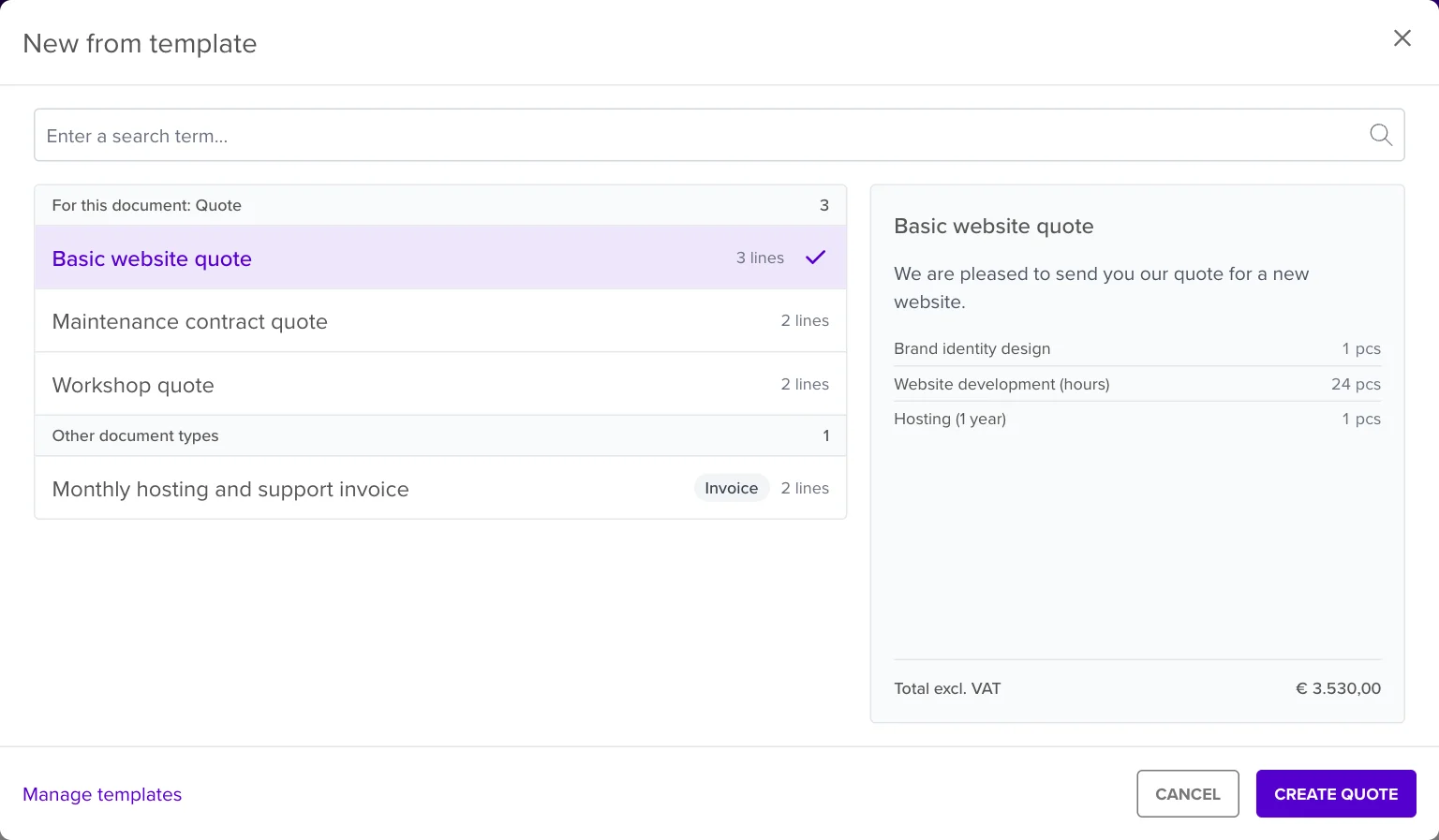
You get a new document with the lines, intro text, remarks and reference from the template. Choose the customer, adjust what is needed and save as usual.
The list shows the templates for the document type you are working on at the top (For this document). Below them you find the templates of Other document types, which you can use too. Use the search field to quickly find a template by title.
You can also start from the template itself. Open it under Products > Document templates and click the button with the default document type, for example Create Quote. Use the arrow next to it to choose another document type.
New from template works for quotes, invoices, pro forma invoices, credit notes, delivery notes and purchase orders.
💡 Tip: Is your document calculated including VAT? Then the prices from the template are converted automatically, just like when you add a product.
Go to Products > Document templates. Through the menu next to a template you can Edit, Duplicate or Delete it. Editing a template does not change any documents you created with it earlier.
