With the time clock in the app, you register your working time: you clock in at the start of your working day, take a break and clock out when you stop. Everything goes straight to your employer in the web version.
ℹ️ The time clock depends on your employer’s subscription, and your administrator can switch it off. Don’t see Time clock in the menu? Then check with your employer. How the time clock works for administrators is explained in Time clock: registering your employees’ working time.
On the home screen, tap Start time clock (to the left of the + button): you’re clocked in right away. After that, the same spot shows Break and Stop, or during a break Resume and Stop.
You can also open the Time clock screen via the menu or the tile. The same buttons are at the bottom:
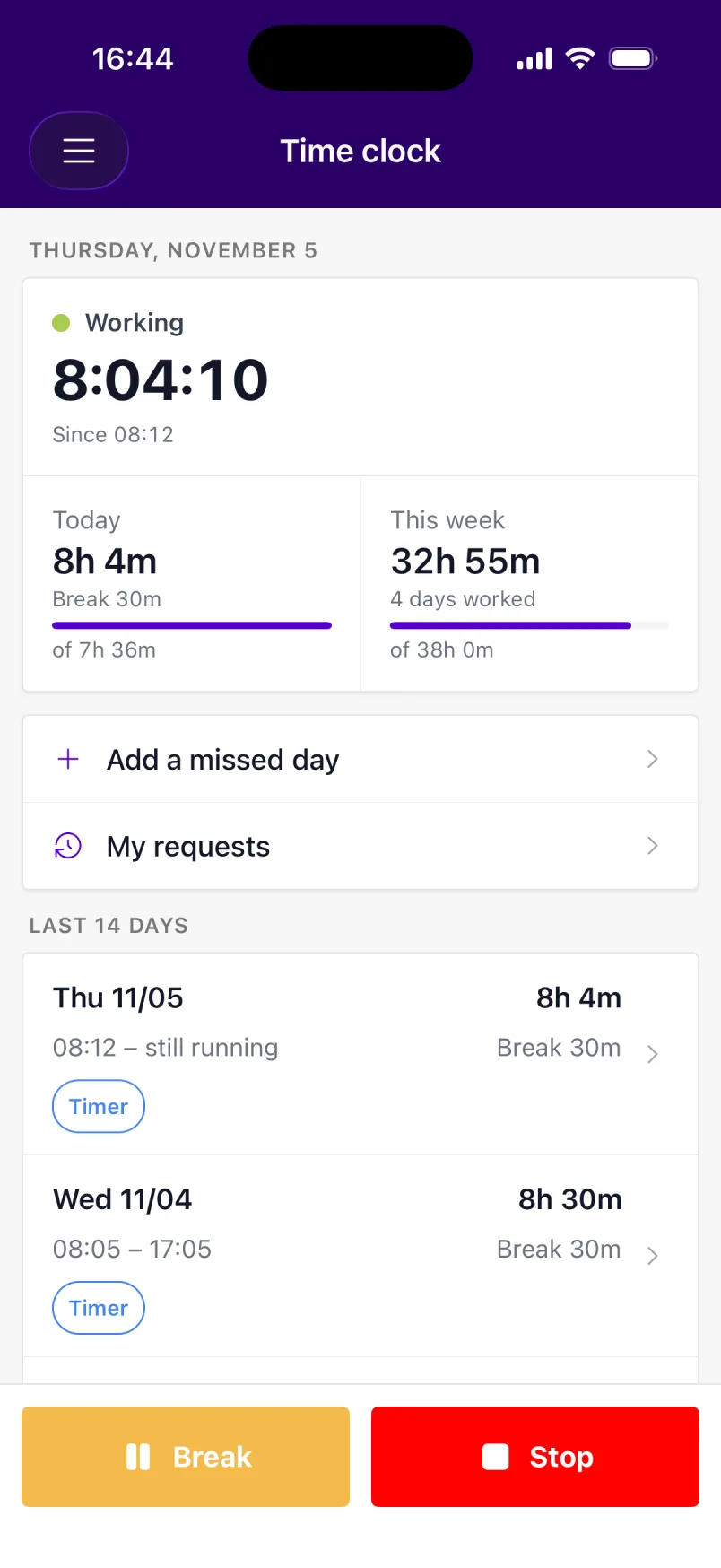
While the time clock is running, you see a counter on the tile and in the menu: green when you’re working, orange during your break.
💡 The time clock keeps running until you clock out yourself, even if you close the app. Forgot to clock out? If your registration runs about 2 hours longer than usual, you get a push notification Your time clock is still running.
At the top of the Time clock screen, you see your status (Not clocked in, Working, On break or Clocked out), the counter and how long you worked Today and This week. If your employer has set up a work schedule, you also see how that compares to your norm.
Below that are your Last 14 days. Tap a day to see the details: start, end, breaks, time worked and any changes made by your employer.
Forgot something or clocked in wrong? You don’t edit your registrations yourself: you request a correction, which your employer approves.
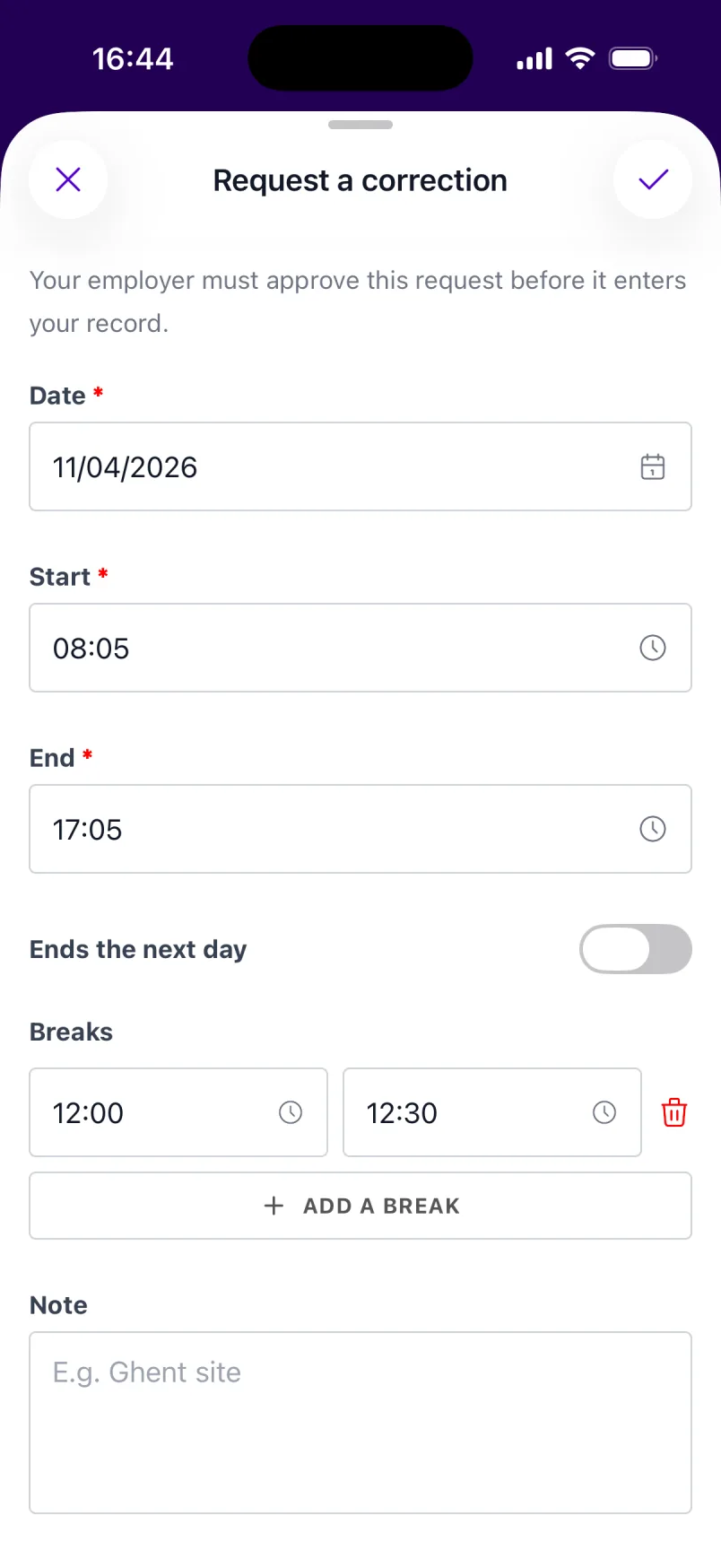
Only one request per day can be open at a time. You follow up your requests via My requests: there you see whether they’re Pending, Approved or Denied, with your employer’s answer. Once your request has been handled, you get a push notification.
If your employer has given you access to the time clock only, the app opens straight on the Time clock screen. The menu then only contains the time clock, the settings and log out (and Switch entity if you work for multiple companies).
The time clock registers your working time: when you work, regardless of clients or projects. The Time tracking timer in Projects registers project hours that you charge to a client. You can use both. See Projects and time tracking in the app.
