With the time clock, your employees register their working time: they clock in at the start of their working day, take a break and clock out when they stop. As an admin, you see per week who worked how much, approve corrections and export everything to Excel.
ℹ️ The time clock is available depending on your subscription (not in the entry-level plan). Don’t see Time clock in the menu under your name? Then it isn’t included in your plan, or an admin has switched it off. Questions? Contact help@numnum.be.
💡 Time clock or time tracking? The time clock records when an employee works (their working time). Want to register hours per customer or project so you can invoice them? Then use the time registrations from Projects and time tracking. The two are completely separate.
The time clock is switched on by default for every company. If your company doesn’t record working time, for example because you work alone as a freelancer, switch it off:
Only an Admin sees this setting. This is what happens when you switch the time clock off:
If you switch it back on later, the button and the menu reappear for everyone who has access.
On a computer, a button at the top of every page changes along with your status:
| You see | What it does |
|---|---|
| Start | You clock in and your working time starts running |
| Stop (with a counter) | You clock out. Use the arrow next to it to choose Pause |
| Resume | Your break ends and your working time continues. Use the arrow next to it to choose Stop |
You don’t need to confirm anything: after a click, a message such as “Clocked in. Your work time is running.” appears right away. You’ll find the same actions in the global search (Ctrl/Cmd+K) and on the Time clock page itself.
Click your name in the top right corner and choose Time clock. There you see:
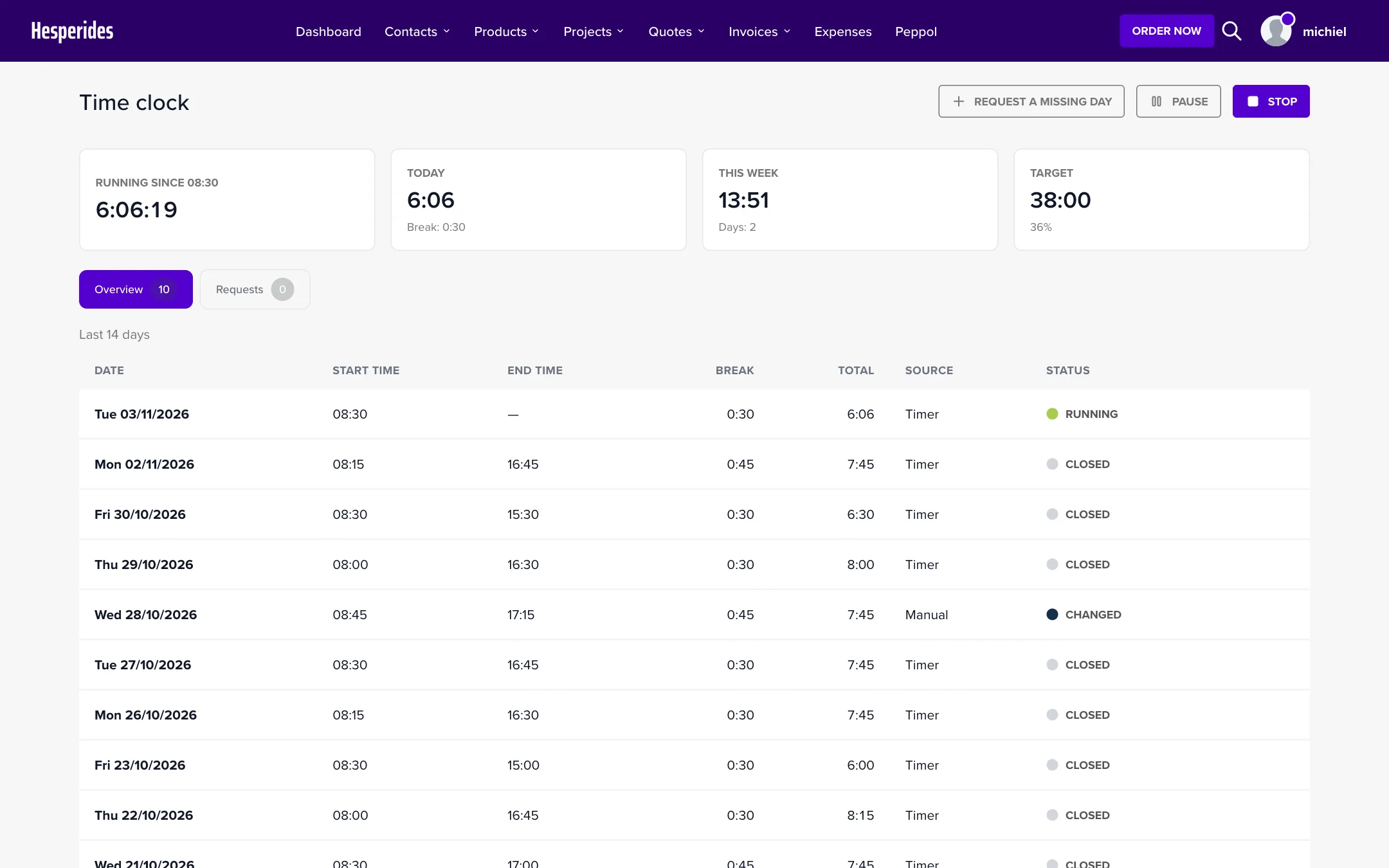
An employee doesn’t change their own registrations. You submit a proposal and your manager approves or denies it:
Fill in the Date, Start time, End time and any Breaks (via Add a break), and enter a Reason (required). Then click Submit request. As soon as your request has been handled, you receive a notification.
Good to know:
As an admin, click your name in the top right corner and choose Team time clock. You’ll find the Overview and Requests tabs there.
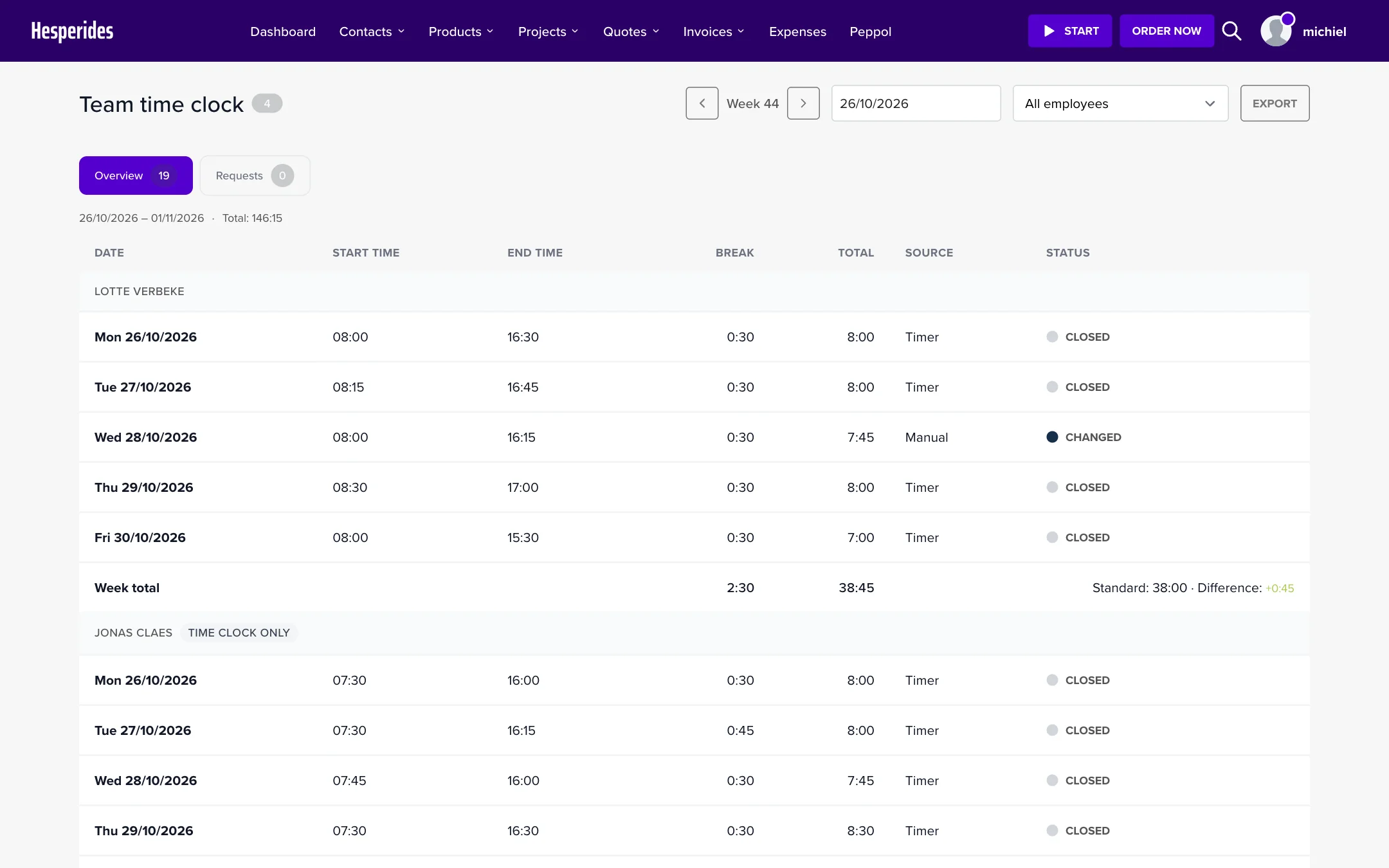
Employees who only register their time are marked with the Time clock only label. Click a registration to open it: the Change history shows the value before and after each change, who made it and why.
Is a registration wrong? Correct it yourself:
The change is applied immediately and stored in the history together with your reason. If the registration is still running, fill in an end time: the correction then closes the day.
When you approve, the proposal is applied to the registration and stored in the history. When you deny, the registration stays unchanged; your comment is visible to the employee. You don’t handle your own request: leave it to another admin.
The file has two tabs: Days (one row per registration, with start, end, break, total, source and corrections) and Weeks (the total per week, with standard and difference). Deleted registrations are included too, marked as deleted.
| Role | What can they do with the time clock? |
|---|---|
| Employee | Register their own working time, view their own overview and request corrections |
| Admin | Register their own time and, via Team time clock, view everyone’s overview, correct, handle requests and export |
The team overview, correcting, handling requests and exporting are reserved for admins. You can’t give these rights to an employee, not even through permission profiles.
Do you have staff who only need to clock in and don’t need to see anything else in NumNum? Then switch on Work time registration only for that user:
After logging in, such an employee goes straight to their time clock; all other modules stay hidden. In the user list you recognise them by the Work time label. You can also tick the option right away when you create a new employee, see Can I add multiple users to my account?
In the same window you fill in the work schedule: Working days per week and Hours per week. NumNum uses it to calculate the Standard and the Difference in the overviews and the export. The work schedule is only for comparison with the registered hours; no roster is attached to it.
When an employee submits a request, the admins receive a notification (Time clock change request). Once the request has been handled, the employee is informed (Change request handled). You choose which notifications you receive in Setting notifications per user.
Is a registration closed automatically if someone forgets to clock out? No. A registration keeps running until the employee clicks Stop, even past midnight. Did someone clock out too late? They request a correction, or an admin corrects the registration.
Can my accountant or support register or correct on my behalf? No. Registering, correcting and handling requests are always done by the employee or admin themselves, so the history shows the right name.
