Want to quickly and easily add multiple customers to your account? You can import a customer list via an Excel file (.xlsx or .xls, maximum 20 MB). Other formats such as CSV are not supported: in that case, first save your file as an Excel file.
Do you have customer data spread across different invoices or documents? Then it is important to first consolidate them into one central list.
Tip: In the import dialog, click Download example file to download an Excel template. That way you can immediately see which columns you can use and what your file should look like.
Below is an example of what your Excel file could look like:
| title | company_type | last_name | first_name | entity_type | vat_id | vat_country_code | |
|---|---|---|---|---|---|---|---|
| Bakkerij Janssen | company | Janssen | Pieter | BV | 0123456789 | BE | info@bakkerijjanssen.be |
| Marie Dupont | individual | Dupont | Marie | marie@email.be | |||
| Tech Solutions | company | De Vries | Jan | NV | 9876543210 | BE | contact@techsolutions.be |
Note: The first row must contain the column names (such as
title,last_name, etc.). The actual customer data starts from row 2.
Two columns are often confused:
company_type): is the customer a company or a private individual?entity_type): the legal form of a company, such as BV or NV. Preferably put the legal form in this separate column, not in the title.An “Import clients” dialog opens:
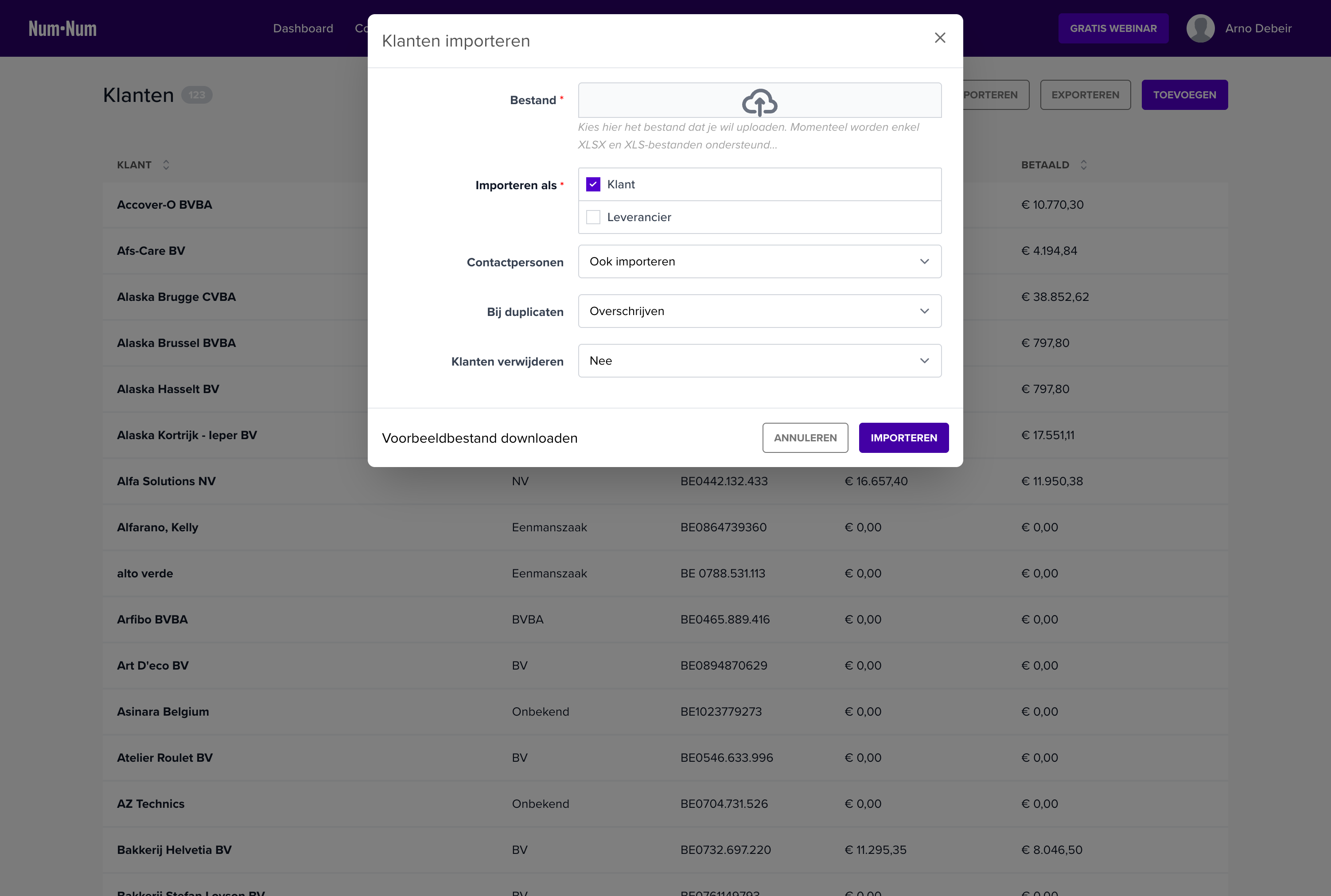
| Field | Description |
|---|---|
| File | Drag your Excel file (.xlsx or .xls, max. 20 MB) to the upload area or click to select a file. |
| Import as | Choose whether to import the contacts as Client or as Supplier. You must choose one option: a contact cannot be both a client and a supplier. |
| Contact persons | Choose whether contact persons from your file should also be imported (Also import) or not (Don’t import). |
| On duplicates | Determine what should happen if a customer already exists: Skip (existing customers are not modified), Overwrite (existing customers are updated with new data) or Create new (a new record is created, the duplicate gets a number suffix). See how are duplicates detected? |
| Delete customers | Choose whether existing customers should be deleted before the import: by default nothing is deleted, or choose Remove previously imported items or Remove all. |
Click Download example file at the bottom to download an Excel template with the most commonly used columns.
After uploading your file, the column mapping screen appears:
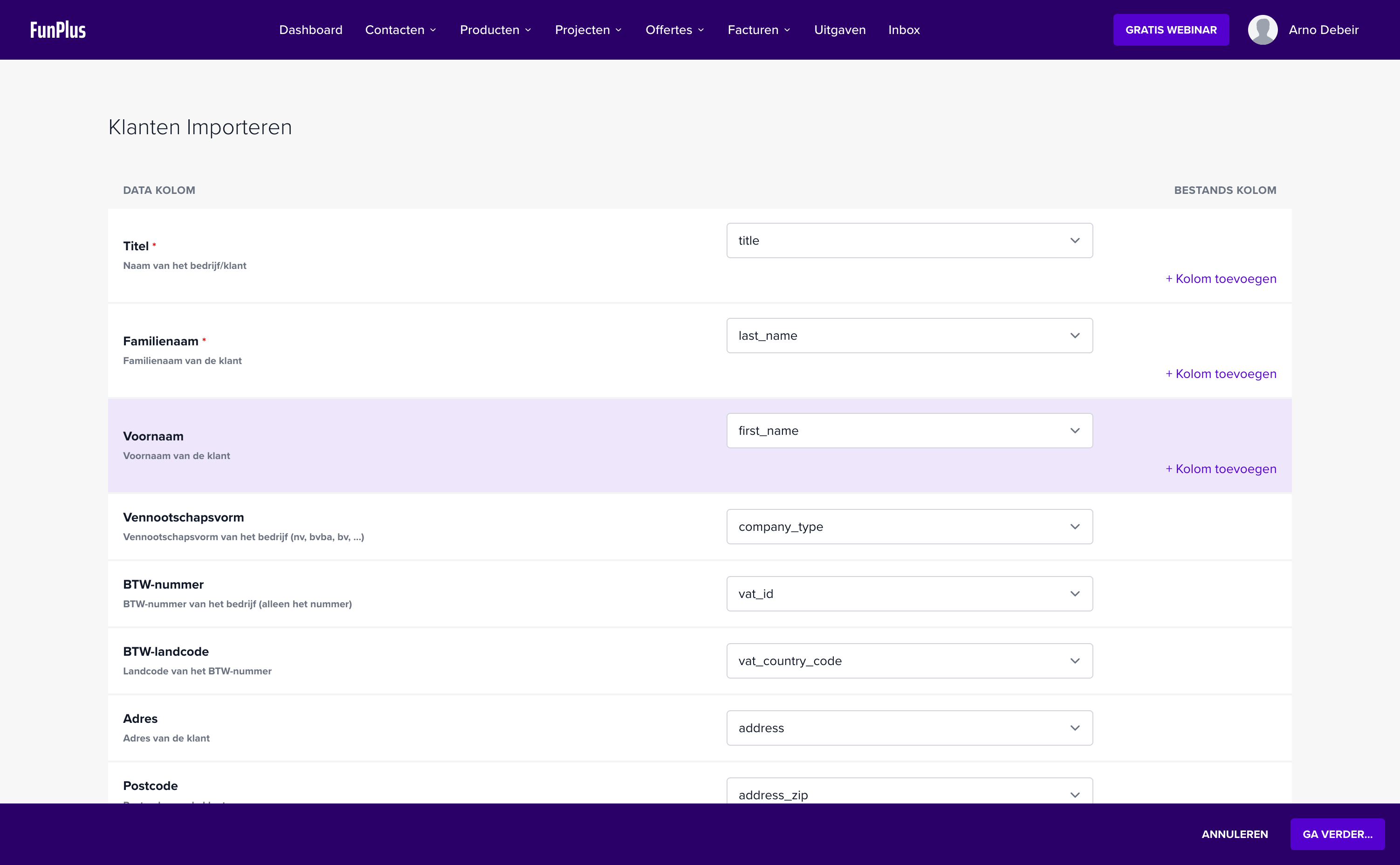
On this screen, you map the columns from your Excel file to the correct data fields in NumNum:
| Column | Description |
|---|---|
| Data column | The field in NumNum where the data should go (e.g. Title, Last name, VAT number). Fields marked with * are required. |
| File column | Select which column from your Excel file should be mapped to this field. Choose “Skip” if you do not want to import a field. |
| Add column | For some fields, you can combine multiple columns (e.g. merge first name + last name into title). |
Tip: NumNum automatically recognises column names that match the example file. If you used the example file as a basis, most columns will already be mapped correctly.
Before the import is executed definitively, you get a review screen. There you will see:
Confirm to execute the import.
Below you will find an overview of all data columns you can map when importing. The “Column in example file” column shows the column name as it appears in the downloadable example file. You are not required to use those names (you map the columns yourself in step 2), but it makes mapping easier. Fields marked “(none)” are not in the example file: add a column for them yourself.
| Data column | Column in example file | Required | Description |
|---|---|---|---|
| Title | title |
Yes* | Name of the company or customer, without legal form (that belongs in the Legal form column) |
| Last name | last_name |
Yes* | Last name of the customer |
| First name | first_name |
No | First name of the customer |
| Company type | company_type |
Yes | company or individual |
| Legal form | entity_type |
No | Legal form of the company (see available values) |
* In the column mapping, Title, Last name and Company type are shown as required fields. In practice: the title is required for companies; for private individuals the title is automatically composed from first name + last name, and the last name is required.
| Data column | Column in example file | Required | Description |
|---|---|---|---|
| VAT number | vat_id |
No | VAT number of the company (number only) |
| VAT country code | vat_country_code |
No | Country code of the VAT number (see country codes) |
Note: Enter the VAT number without country code and without spaces or dots. So “0123456789” and not “BE0123456789” or “0123.456.789”.
| Data column | Column in example file | Required | Description |
|---|---|---|---|
| Address | address |
No | Address of the customer |
| Postal code | address_zip |
No | Postal code of the customer |
| City | address_city |
No | City of the customer |
| Country | address_country |
No | Country code of the customer (see country codes) |
| Data column | Column in example file | Required | Description |
|---|---|---|---|
email |
No | Email address of the customer. Use a unique email address per customer: the email address is also used for duplicate detection | |
| Phone | telephone |
No | Phone number of the customer |
| Mobile | (none) | No | Mobile number of the customer |
| Fax number | fax |
No | Fax number of the customer |
| Website | website |
No | Website of the customer |
| Data column | Column in example file | Required | Description |
|---|---|---|---|
| IBAN country code | iban_country_code |
No | Country code of the IBAN (see country codes) |
| IBAN | iban |
No | IBAN of the customer |
| BIC | bic |
No | BIC/SWIFT code of the customer (8 or 11 alphanumeric characters) |
| Data column | Column in example file | Required | Description | Options |
|---|---|---|---|---|
| Document language | doc_language |
No | Language for documents | nl, fr, en, de (lowercase) |
| VAT percentage | vat_percentage |
No | Default VAT percentage | A number between 0 and 100 (e.g. 0, 6, 12, 21) |
| VAT shifted | (none) | No | Reverse-charge VAT | 1 (yes) or 0 (no) |
| Payment term (days) | (none) | No | Payment term in days | A whole number between 0 and 365 (e.g. 14, 30, 60) |
| Automatic reminder | (none) | No | Send automatic reminders | 1 (yes) or 0 (no) |
These columns are only processed if you chose Contact persons: Also import in the import settings.
| Data column | Column in example file | Required | Description |
|---|---|---|---|
| Contact person first name | contactperson_first_name |
No | First name of the contact person |
| Contact person last name | contactperson_last_name |
No | Last name of the contact person |
| Data column | Column in example file | Required | Description |
|---|---|---|---|
| Peppol Scheme ID | (none) | No | Peppol Scheme ID (e.g. 0208 for the Belgian company number) |
| Peppol Endpoint ID | (none) | No | Peppol Endpoint ID (usually the enterprise number) |
| Identification Scheme ID | (none) | No | Identification Scheme ID |
| Identification ID | (none) | No | Identification ID |
| Data column | Column in example file | Required | Description |
|---|---|---|---|
| Internal notes | (none) | No | Private notes, not visible to the customer (max. 1000 characters) |
| External ID | (none) | No | External reference ID (for integrations with other systems); also used for duplicate detection |
| Sort order | (none) | No | Sort order (number) |
For the Legal form field (entity_type in the example file), NumNum recognises the common Belgian and international legal forms. Some examples:
| Value | Full name |
|---|---|
| BV | Besloten Vennootschap (private limited company) |
| BVBA | Besloten Vennootschap met Beperkte Aansprakelijkheid |
| NV | Naamloze Vennootschap (public limited company) |
| VOF | Vennootschap Onder Firma (general partnership) |
| Comm.V | Commanditaire Vennootschap (limited partnership) |
| SC | Coöperatieve Vennootschap (cooperative company) |
| VZW | Vereniging Zonder Winstoogmerk (non-profit association) |
| Eenmanszaak | Sole proprietorship |
| Particulier | Private individual / natural person |
Foreign forms such as SRL, SA, SARL, GmbH, AG and Ltd are also recognised. If you use a value that is not recognised, you will get an error message during the review step with the valid values.
For fields with country codes (vat_country_code, address_country, iban_country_code), use the ISO 3166-1 alpha-2 codes (2 uppercase letters):
| Code | Country |
|---|---|
| BE | Belgium |
| NL | Netherlands |
| FR | France |
| DE | Germany |
| LU | Luxembourg |
| GB | United Kingdom |
| ES | Spain |
| IT | Italy |
| AT | Austria |
| CH | Switzerland |
Tip: Always use 2 uppercase letters for country codes. A complete list can be found at ISO 3166-1 alpha-2.
NumNum checks per row whether there is already an existing customer that matches. This is done based on these fields, from most to least specific:
The first combination that is fully filled in AND matches an existing customer determines the match. Address details are not used for duplicate detection.
Note: The email address weighs heavily. Two different customers with the same email address are considered duplicates. For the most reliable detection, fill in a unique External ID or VAT number per customer.
Depending on your choice for “On duplicates”:
| Option | Behaviour |
|---|---|
| Skip | The existing customer remains unchanged, the row from your Excel is ignored |
| Overwrite | The existing customer is updated with the data from your Excel |
| Create new | A new customer is created; the duplicate gets a number suffix |
After a successful import, you will find your new customers in the customer overview (Contacts → Clients). It is recommended to randomly open a few imported customers and check that all data has been transferred correctly.
Note: Rows with missing required fields or invalid values get an error message during the review step. Fix these in your Excel file and try again, or check after the import whether the number of imported customers matches the number of rows in your file.
1 or 0Need help? Contact our support team, we are happy to assist!