The Material Platform is a powerful feature that gives you direct access to your suppliers’ product catalogues. This way, you can add products from your suppliers directly to your invoices, quotes and other documents, without having to manually create them in your own product list first.
Which suppliers can you connect?
For each supplier you can see which features are available: Product list means you search the catalogue directly from your document lines, Shopping cart means you fetch your online cart at that supplier with your webshop login (see Importing a supplier’s shopping basket). Suppliers with the “Coming soon” badge are in preparation.
Sanitary 6
Dupont Sanitair
Product list
Van Marcke
Product list
Desco
Product listShopping cart
STG
Shopping cart
Facq
Shopping cart
Fittingshop
Coming soon
Electricity 2
Cebeo
Shopping cart
Rexel
Shopping cart
Construction 9
Verhelst
Product listShopping cart
Deschacht
Shopping cart
LSDrain
Shopping cart
DomsPro
Shopping cart
Technicel
Shopping cart
Foylo
Coming soon
ODM
Coming soon
Defrancq
Coming soon
BetoTrace
Coming soon
Paint 4
Bosspaints
No features yet
Sigma
No features yet
Gysels
No features yet
Libert
No features yet
Rental 3
Duma Rent
No features yet
ABRent
No features yet
4Rent
Coming soon
Roofing 1
APOK
Coming soon
Heating 3
Viessmann
Coming soon
Varey
Coming soon
Frigro
Coming soon
Other 3
Würth
Shopping cart
Pro at Work
Coming soon
Bluefields
Coming soon
The list keeps growing. Missing a supplier? Let us know via help@numnum.be.
Availability
The Material Platform is:
Included in the highest subscription plan - The Material Platform is then automatically available.
Available as an addon on other plans - You can then add the Material Platform as an addon.
Connecting suppliers
To use products from your suppliers, you first need to create a connection with the desired suppliers.
Step 1: Go to the Material Platform
Go to Connections in the main menu
Click on Material Platform
Step 2: Connect a supplier
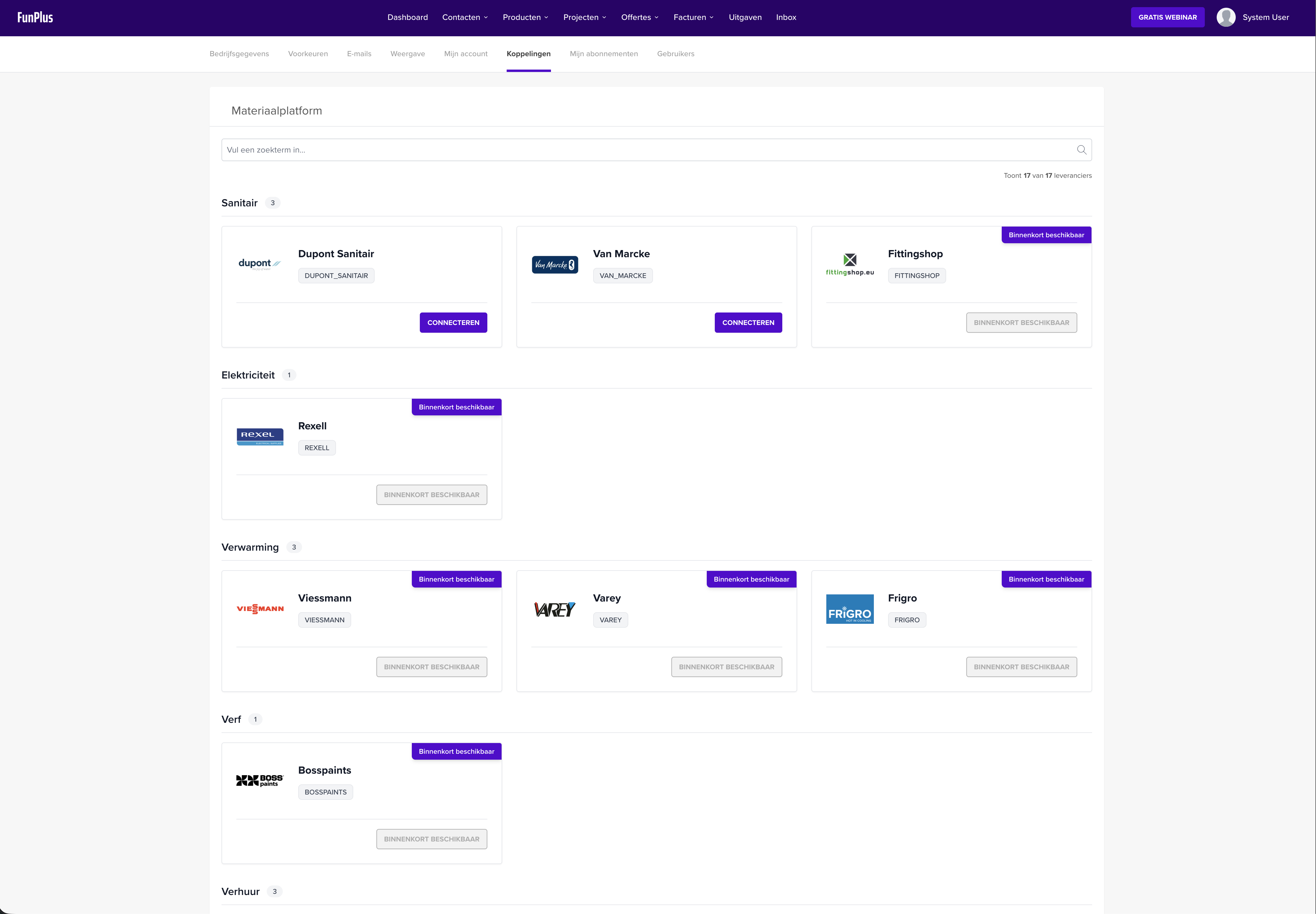
Search for your supplier using the search bar or filter by category (e.g. Roofing, Sanitary, Electricity, Heating, Paint, Rental, Construction)
Click Connect next to the desired supplier
The supplier is now added to your connected suppliers
💡 Tip: Some suppliers are not yet available and show the badge “Coming soon”.
Disconnecting a supplier
Want to disconnect a supplier?
Go to Connections > Material Platform
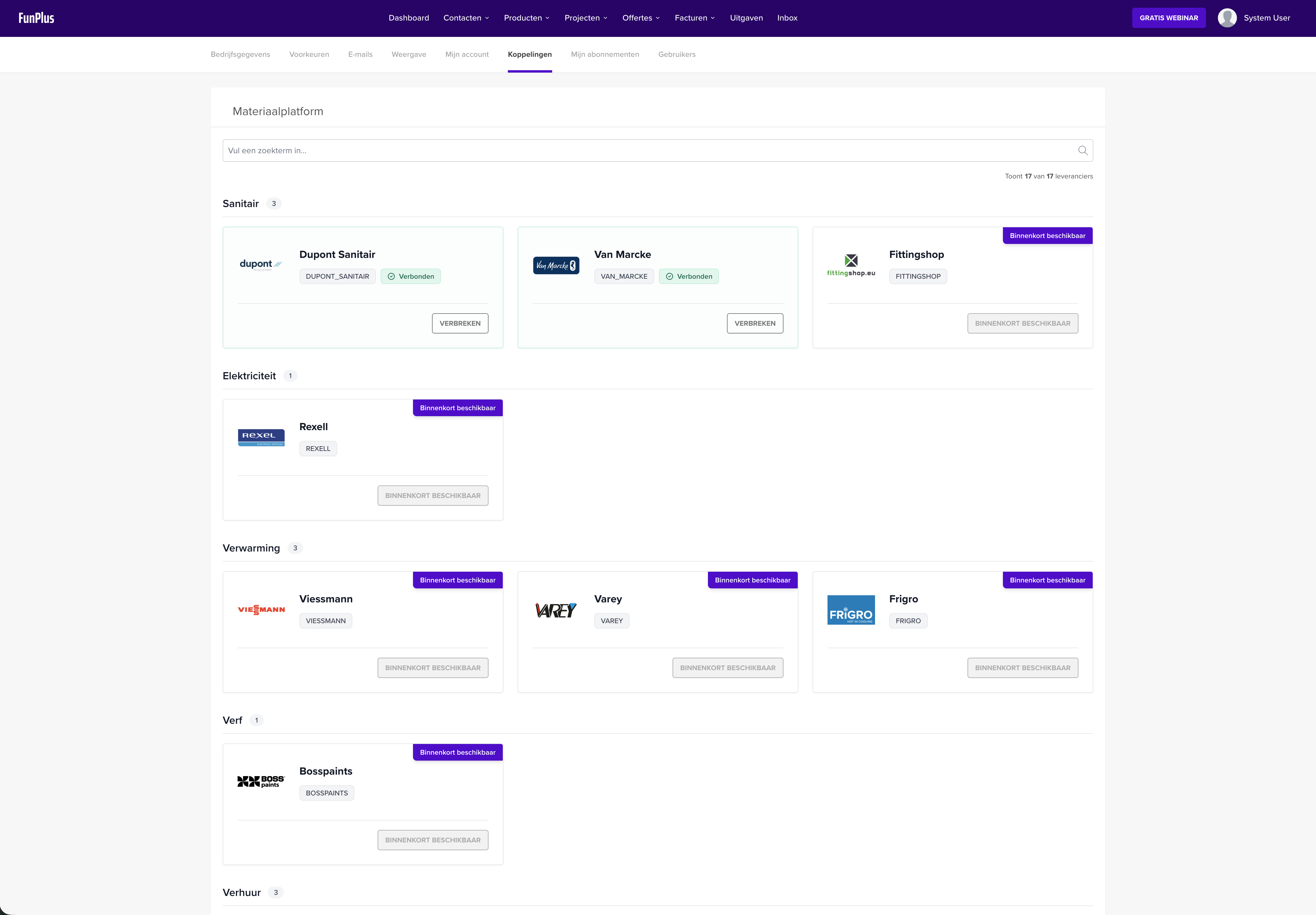
Find the connected supplier (recognisable by the green “Connected” badge)
Click Disconnect
Using supplier products
Once you have connected suppliers, you can use their products in various ways.
Method 1: Search directly in a document line
The quickest way to add supplier products:
Create a new invoice, quote or other document
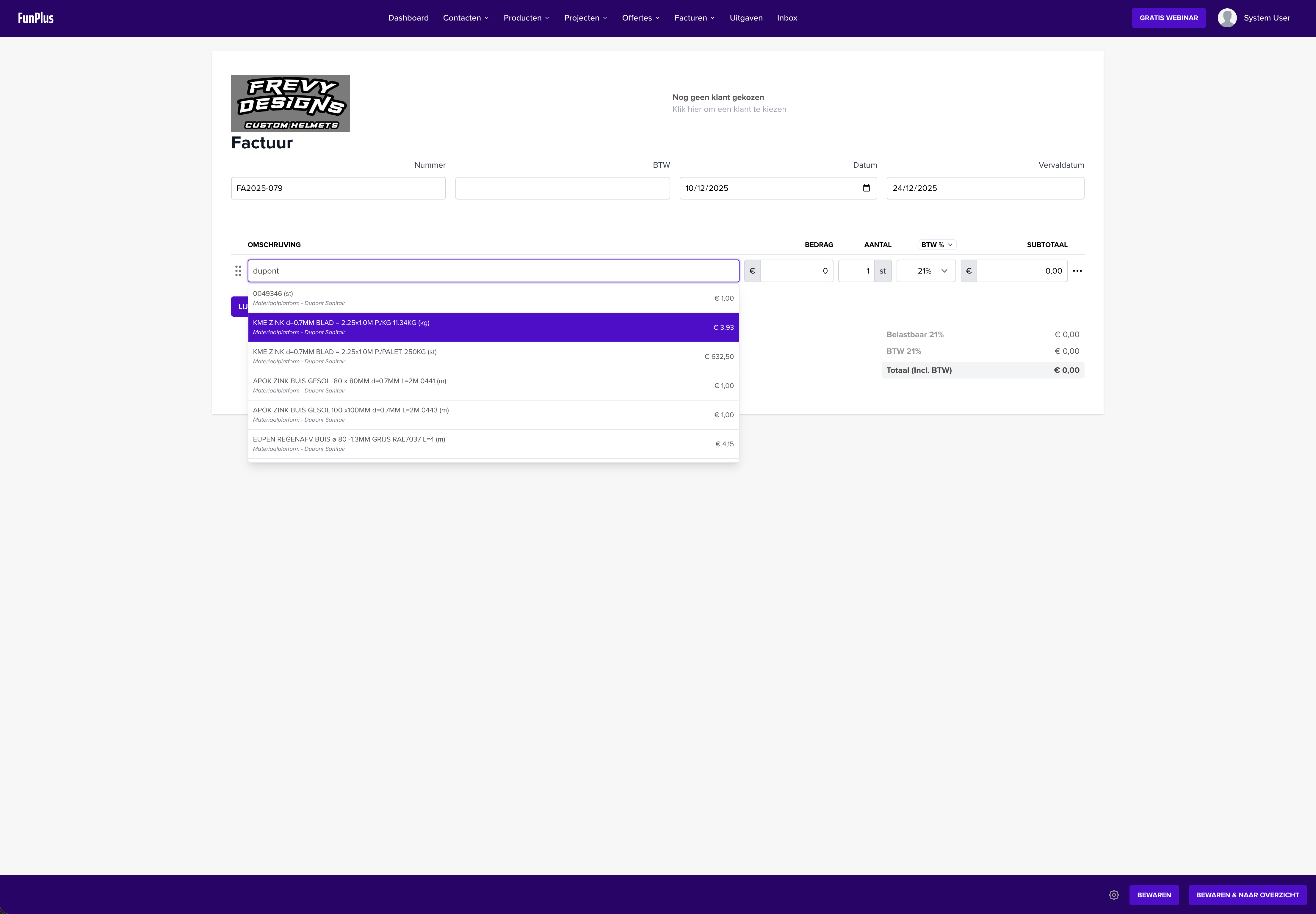
Click in the description field of a new line
Start typing (minimum 3 characters)
The search results show both your own products and products from your connected suppliers
Supplier products are recognisable by the “Material Platform” label
Select the desired product
Method 2: Via the “Add” button
For more control over which supplier you want to search:
Open an invoice, quote or other document
Click the Add button (or +) at the document lines
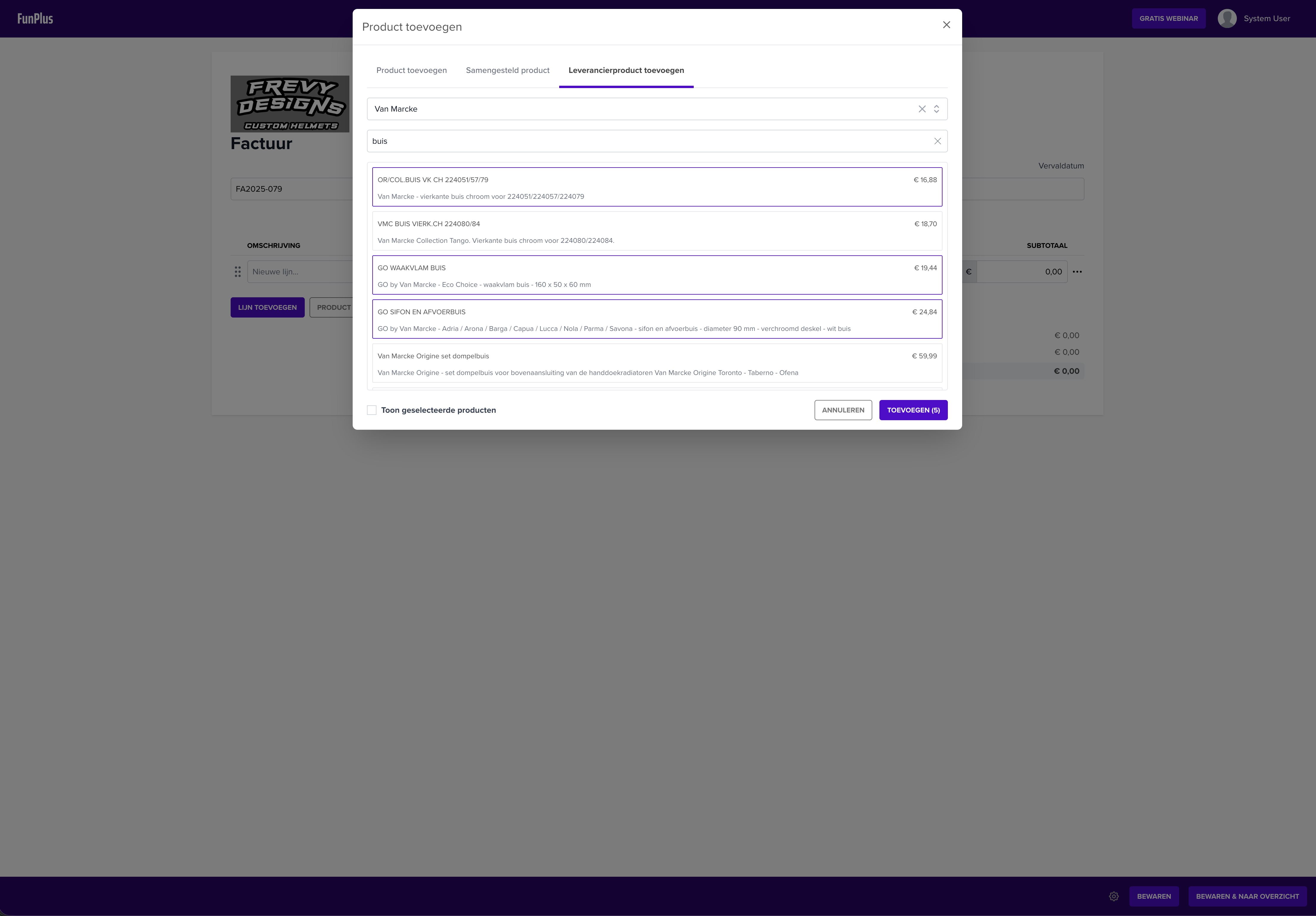
Select the Supplier tab
Choose a supplier from the dropdown
Search for the desired product
Select one or more products
Click Add
Method 3: As a product registration on a project
Working with projects? You can also register supplier products as a product registration:
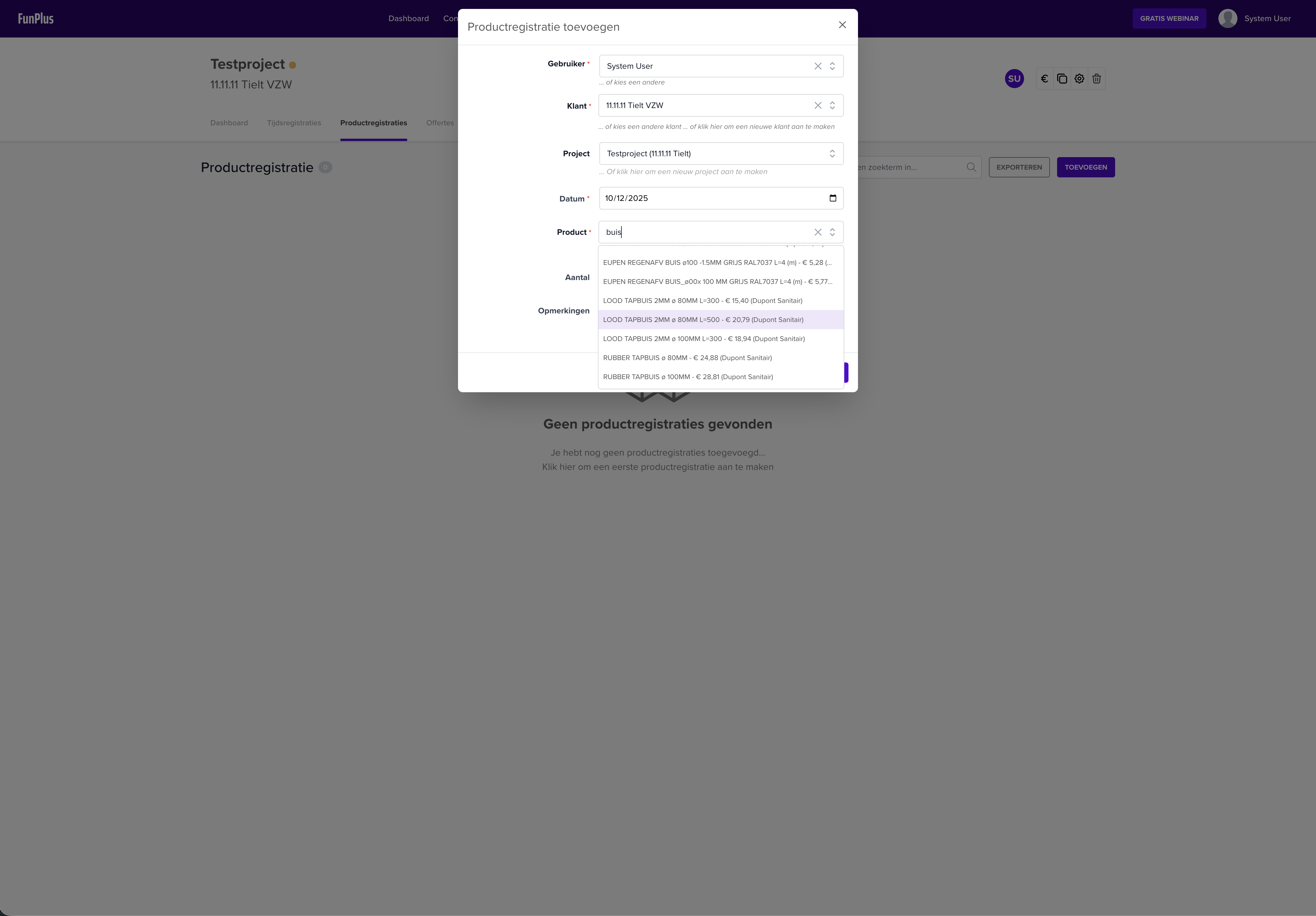
Go to your project
Open the Product registrations tab
Click New product registration
Search and select a supplier product
Fill in the quantity and other details
Save the registration
Frequently asked questions
Why don’t I see any suppliers?
Check the following:
Does your subscription include the Material Platform, or do you have the Material Platform addon?
Are there suppliers available in your category?
Are supplier products saved in my product list?
No, supplier products are not saved in your own product list. They are retrieved directly from your supplier’s catalogue. This means you always have the most up-to-date prices and product information.
What if my supplier is not in the list?
Some suppliers are still being prepared and will be added soon. Contact us if you are missing a specific supplier.
Need more information?
Do you have questions about the Material Platform? Contact us at help@numnum.be.