With the shopping basket feature, you can retrieve products directly from your supplier’s online shopping basket and add them to your invoices. This way, you no longer need to manually type over products - you retrieve them directly with all product details, prices and quantities.
How does it work?
The principle is simple:
You place products in your supplier’s online shopping basket (e.g. via the Cebeo webshop)
In NumNum, you retrieve this shopping basket
You select which products you want to add to your invoice
The products are automatically transferred with all details
This saves you a lot of time and prevents errors when transferring product details.
Availability
The shopping basket feature is available for the following suppliers:
Sanitary 3
Desco
Product listShopping cart
STG
Shopping cart
Facq
Shopping cart
Electricity 2
Cebeo
Shopping cart
Rexel
Shopping cart
Construction 5
Verhelst
Product listShopping cart
Deschacht
Shopping cart
LSDrain
Shopping cart
DomsPro
Shopping cart
Technicel
Shopping cart
Other 1
Würth
Shopping cart
The list keeps growing; the full overview of all suppliers (including those without a basket) is in the Material Platform article.
Linking a supplier with login credentials
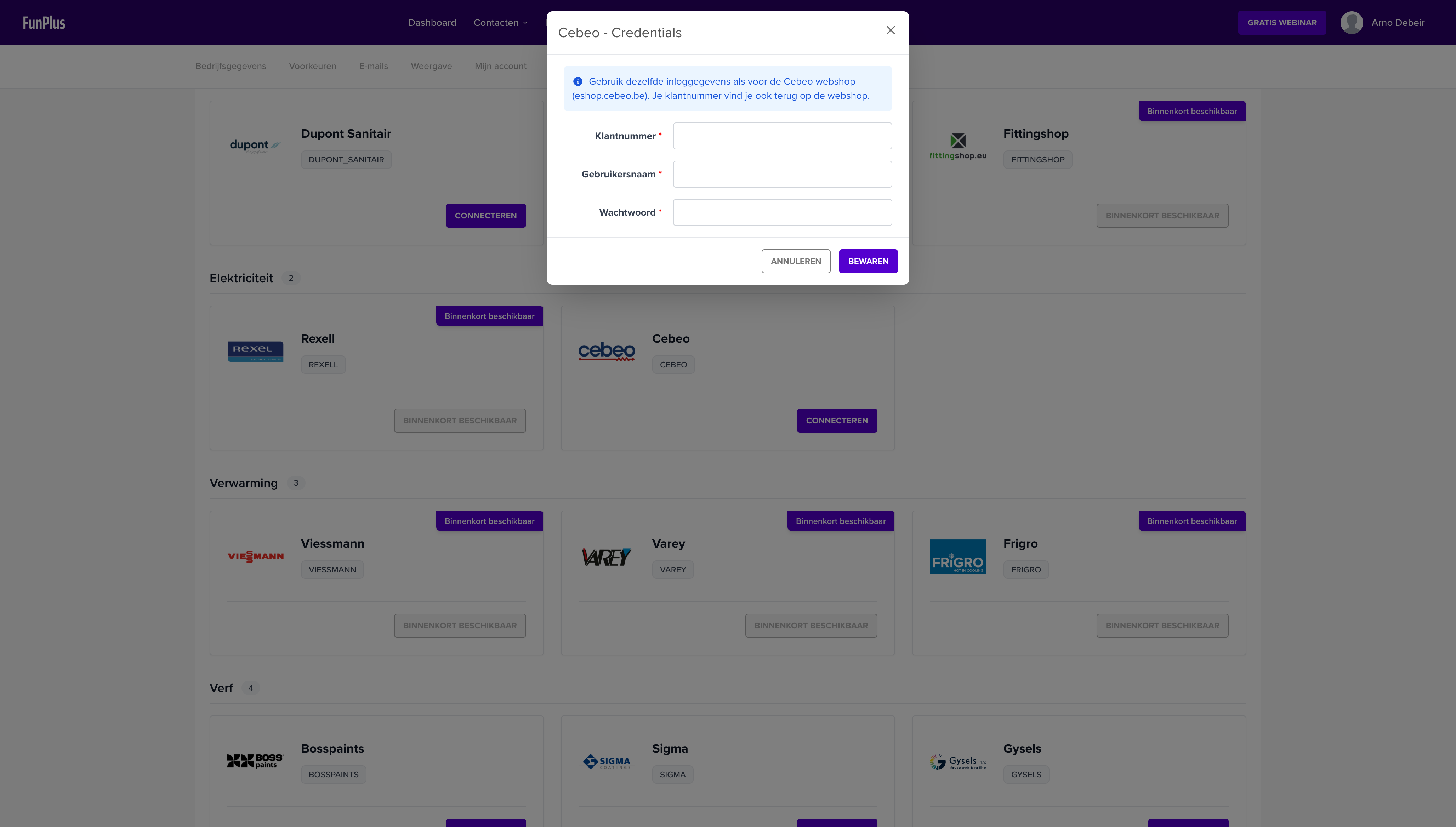
To retrieve your supplier’s shopping basket, you first need to link your login credentials in NumNum.
Step 1: Go to Connections
Go to Connections in the main menu
Click on Material Platform
Step 2: Enter your login credentials
Find the supplier for which you want to use the shopping basket (e.g. Cebeo)
Click Connect
Enter your login credentials:
Customer number - Your customer number with the supplier
Username - Your login for the supplier’s webshop
Password - Your password for the webshop
Click Save
Note: These are the same login credentials you use to log in to your supplier’s webshop (e.g. eshop.cebeo.be).
Retrieving products from the shopping basket
Now that your supplier is linked, you can retrieve products from your shopping basket.
Step 1: Open a document
Create a new invoice, quote or other document
Or open an existing document you want to edit
Step 2: Go to the shopping basket
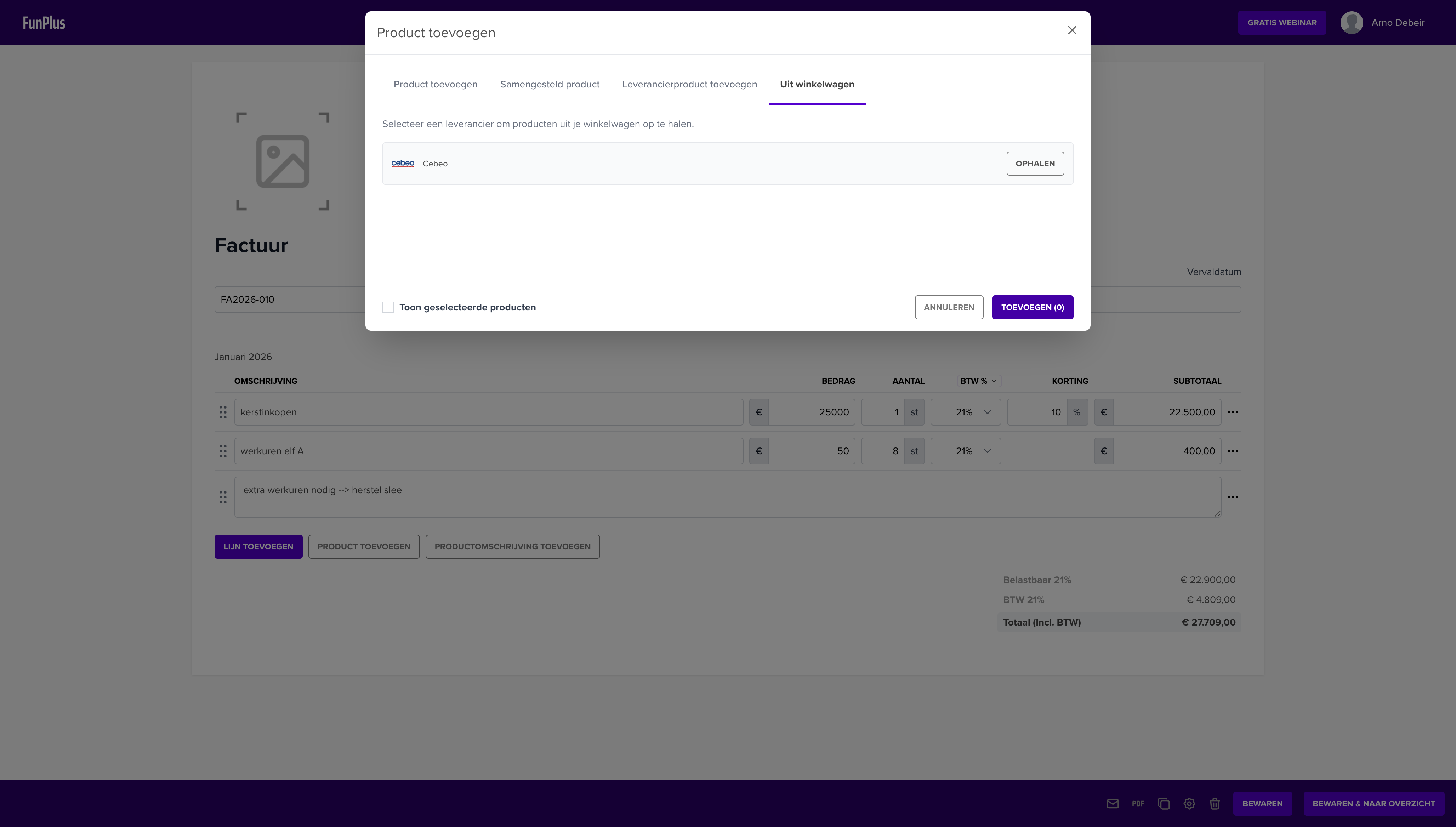
Click the Add product button at the document lines
Select the From shopping basket tab
Step 3: Retrieve the shopping basket
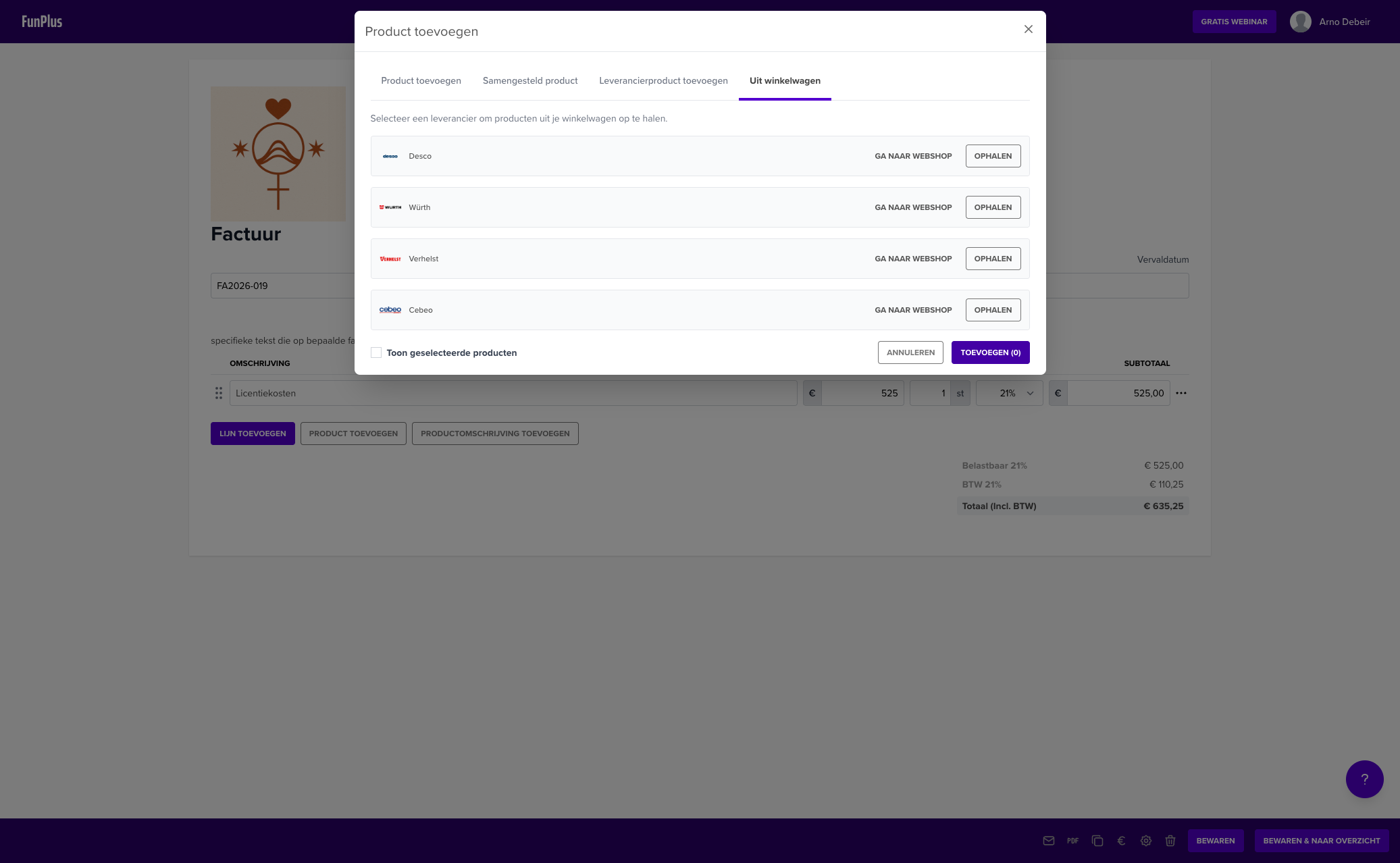
You see a list of suppliers for which you have set up credentials
Click Retrieve next to the desired supplier
NumNum now retrieves the current contents of your shopping basket
Tip: Retrieval may take a few seconds, depending on the supplier.
Go directly to the webshop
Next to the Retrieve button, you will find a Go to webshop button for each supplier. Click this to navigate directly to your supplier’s webshop in a new tab. This way, you can quickly view products and add them to your shopping basket without having to browse to the supplier’s website yourself.
This is useful when:
You want to add more products to your shopping basket before importing them into NumNum
You want to quickly check which products are available from your supplier
You want to order directly from your supplier from within NumNum
Tip: First add your products in the supplier’s webshop, then return to NumNum and click Retrieve to fetch your updated shopping basket.
Note: For the integration with STG, it is mandatory to use the Go to webshop button to fill your shopping basket. Always use this link from NumNum to navigate to the STG webshop, so that your shopping basket is correctly linked.
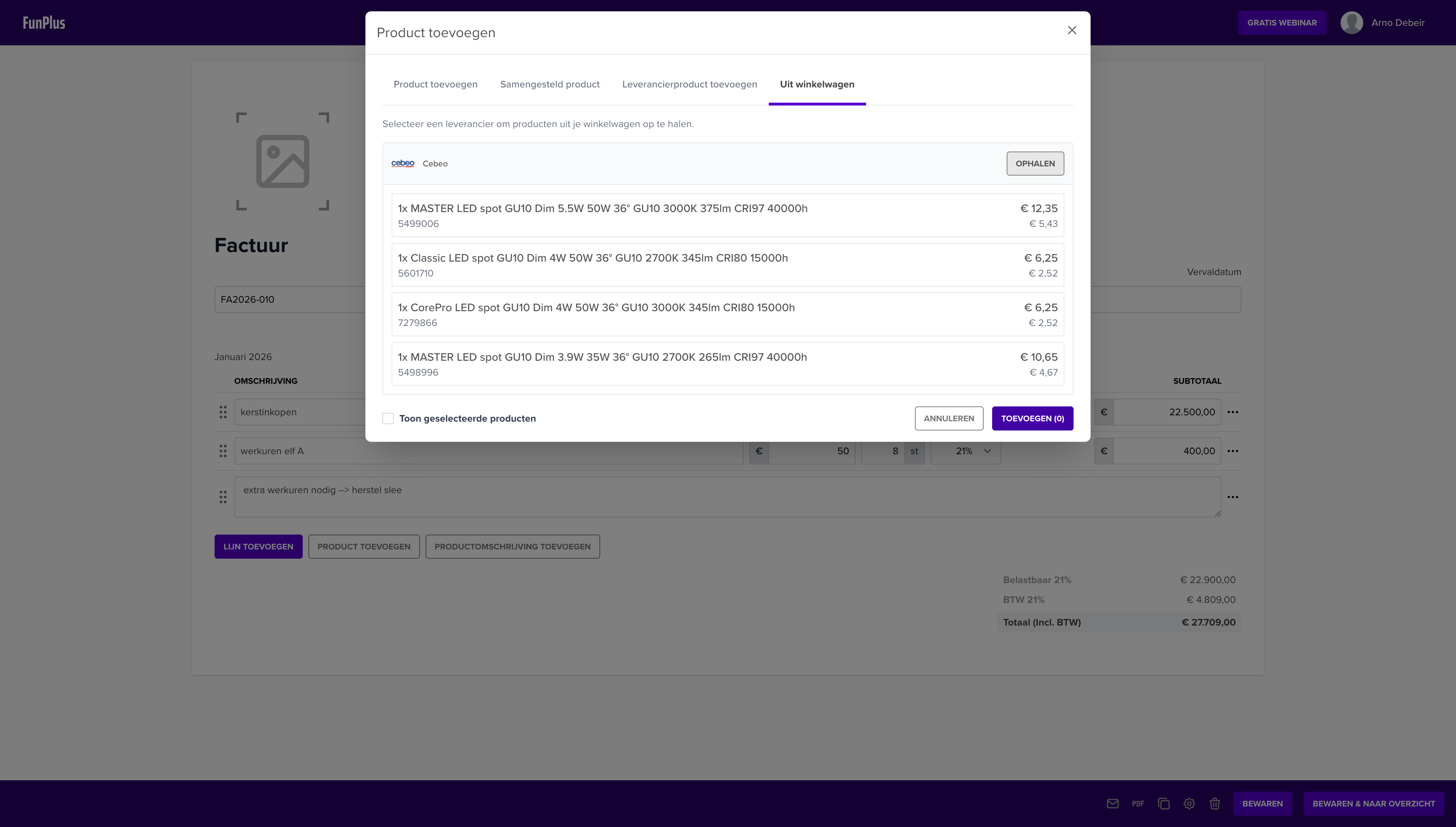
Step 4: Select products
You now see all products in your shopping basket
Each product shows:
Product description
Article number
Quantity
Selling price and purchase price
Click on a product to select it (or click again to deselect)
Use the Show selection checkbox to only see selected products
Step 5: Add to document
Review your selection
Click Add (X) where X is the number of selected products
The products are added to your document with:
Product description
Quantity from the shopping basket
Unit (pieces, metres, etc.)
Selling price
Purchase price (as cost price)
Example: Cebeo shopping basket
Imagine you are an electrician who has completed an installation. You ordered the materials via the Cebeo webshop and the products are still in your shopping basket.
Traditional method:
Open the Cebeo webshop
View your shopping basket
Note down all products, quantities and prices
Manually type everything into your invoice
With the shopping basket feature:
Open your invoice in NumNum
Click Add > From shopping basket
Click Retrieve next to Cebeo
Select the products
Click Add
All product details are automatically transferred - no typos, no forgotten items.
Frequently asked questions
Why don’t I see any suppliers in the “From shopping basket” tab?
Possible causes:
You have not yet set up credentials for a supplier with shopping basket support
Go to Connections > Material Platform to set up your credentials
My shopping basket is empty, but I have added products?
Check the following:
Have you added the products to your shopping basket in the supplier’s webshop?
Are the login credentials in NumNum the same as those you use to log in to the webshop?
Some suppliers distinguish between different shopping baskets (e.g. per project)
Are the products removed from my supplier’s shopping basket?
No, NumNum only reads the contents of your shopping basket. The products remain in your shopping basket at the supplier. You can still order or remove them there.
Can I adjust the prices after adding?
Yes, after adding you can still adjust all product details in your document, including prices, quantities and descriptions.
Are my login credentials stored securely?
Yes, your login credentials are stored encrypted. They are only used to retrieve the shopping basket when you request it.
Need more information?
Do you have questions about the shopping basket feature? Contact us at help@numnum.be.