You can change your NumNum subscription yourself on the My subscriptions page. This gives you full control over your plan without having to wait for support.
ℹ️ If your accountant or partner manages your license, you don’t order yourself. See Can my accountant arrange this for me? at the bottom.
In the My subscription block you can see your current package, the period and any scheduled changes.
In the My subscription block, click Change package. If you are still in your trial period, this button is called Activate account, and you can also click Order now at the top.
You arrive on an order page with six steps. On the side you always see a summary with the price. Continue takes you to the next step, Back to the previous one.
| Step | What you do |
|---|---|
| Package | Choose Month or Year at the top, and the package you want below. Set the number of users at the bottom |
| Add-ons | Tick the add-ons you want to add. Anything already included in your package is marked |
| Details | Check your billing details and adjust them where needed |
| Overview | Check your order and the price calculation. Have a discount code? Enter it here and click Validate |
| Payment | Choose Online payment or Bank transfer |
| Confirmation | Your order is complete and your new package is active straight away, also with a bank transfer. A renewal starts on the start date of your new period |
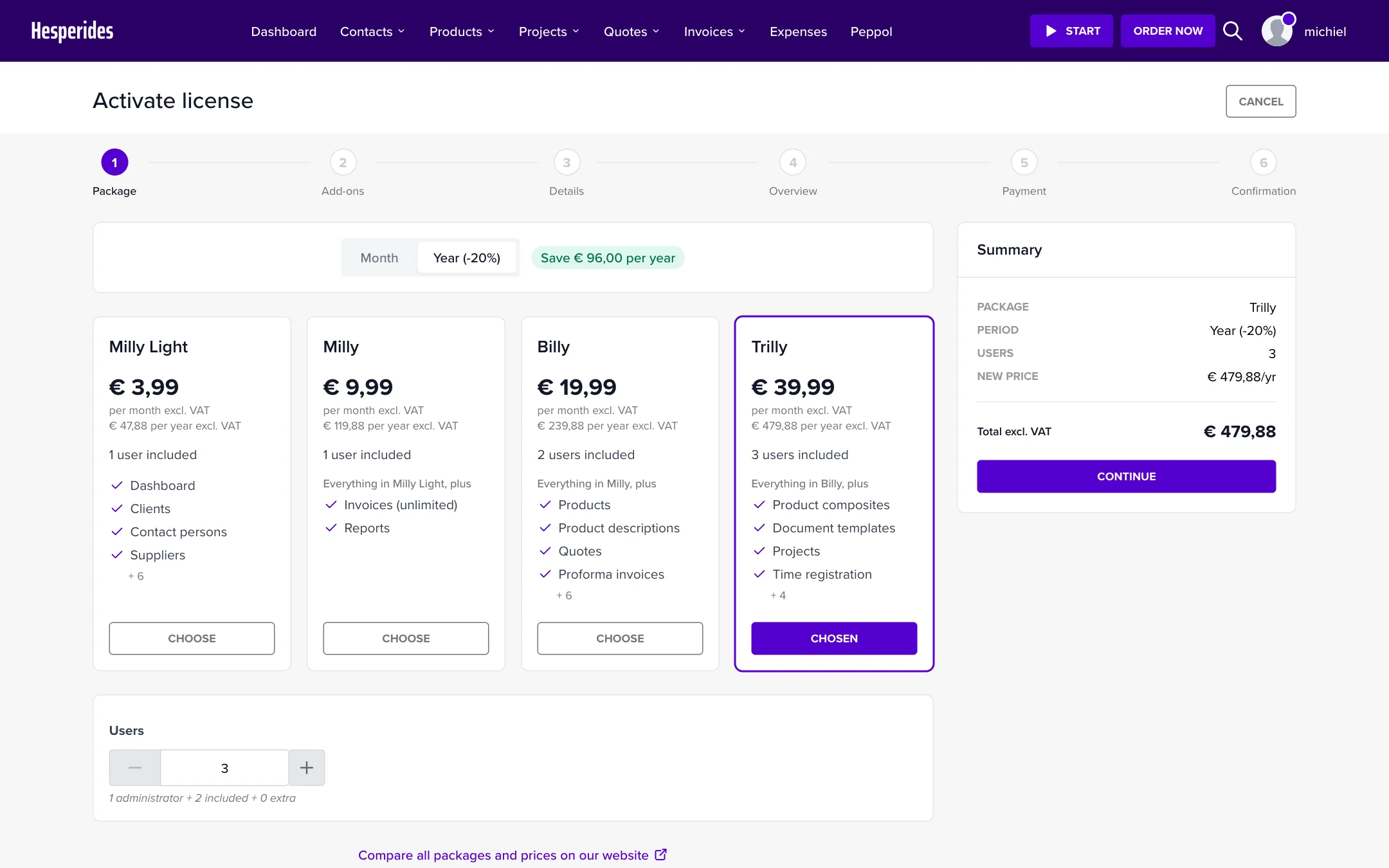
💡 Tip: Torn between two packages? In the Package step, click Compare all packages and prices on our website to see all differences side by side.
With an upgrade, you get immediate access to the extra features. You only pay for the remaining days of your current period (pro rata calculation). The summary shows that calculation.
If your current license expires today, you can only order a different package once it has expired. On that day, a change to your current package becomes a renewal.
Add-ons extend your plan with extra functionality, such as the Document AI Scanner.
The add-on is available straight away. The pro rata calculation applies here too.
If you can already renew your subscription at that moment, the summary asks When would you like to apply the changes? Then choose between Immediately (you pay pro rata for the remaining period) and At renewal (the change takes effect at the start of your new period, at the full price of that period). You get the same choice when you change the period.
If you choose At renewal, or you renew and add add-ons at the same time, Activate add-ons immediately is ticked by default. You then use the new add-ons right away and pay a pro rata surcharge until the start of your new period. Untick it if you’d rather wait for the new period.
Need more users? Go to My subscriptions and click Add users in the Users block. The order page opens with one extra user already set. You can still adjust the number in the Package step.
Choose a lower package in the Package step, or untick an add-on in the Add-ons step. The summary then says Downgrade will be scheduled: the change only takes effect at the end of your current period. You keep all features until your current period ends.
If you have more active users than the lower package includes, a message appears and the order page raises the number of users to your active users. You pay for those extra users. If you don’t want that, remove users first. If the lower package doesn’t sell extra users, you always need to remove them first.
Want to switch from monthly to yearly (or the other way around)?
The new period starts at the end of your current period. The exact date appears right below the choice.
Want to renew your subscription now? Click Renew in the My subscription block. You renew with your current package and payment period. Check the new period in the summary and click Confirm renewal. You can renew up to 2 years in advance.
Have you scheduled a downgrade or period change but want to cancel it after all?
Your subscription then remains unchanged.
When does my change become active? Upgrades and new add-ons are active straight away, also when you pay by bank transfer. A renewal starts on the start date of your new period. Downgrades, the removal of add-ons and period changes take effect at the end of your current period.
How does the pro rata calculation work? You only pay the difference for the remaining days of your period. For example: your current plan costs €49/month and you want to upgrade to €99/month. You are halfway through your period (15 of 30 days remaining). New price for 15 days: €99 × 50% = €49.50. Already paid for those 15 days: €49 × 50% = €24.50. You pay the difference: €49.50 - €24.50 = €25.
What are the payment methods? In the Payment step you choose Online payment (via Mollie: Bancontact, iDEAL, credit card, etc.) or Bank transfer. If you choose Bank transfer, your order is active straight away. You can see the payment deadline and also receive the payment details by email.
What if I don’t pay for my order? That depends on your order:
I see the message “Outstanding payment”. What does it mean? That message can mean two things:
Will I receive an invoice? Yes. As soon as an order is paid, you automatically receive the invoice by email. If you pay by bank transfer, the invoice follows once your payment has arrived. An order of €0 doesn’t get an invoice.
Can my accountant arrange this for me? In some cases, your accountant or partner manages your license. In that case you don’t order yourself: in My subscriptions you won’t see a Change package button, but the message Want to change? Contact with the name and email address of whoever manages your license.
Any further questions? Contact us at help@numnum.be.
