Is the same customer or supplier in your contacts twice, for example after an import or because someone created the record again? Then merge the two records. All documents, payments and contact persons move to the record you keep, and the other record is archived.
⚠️ Merging cannot be undone. Check carefully which record you keep before you confirm.
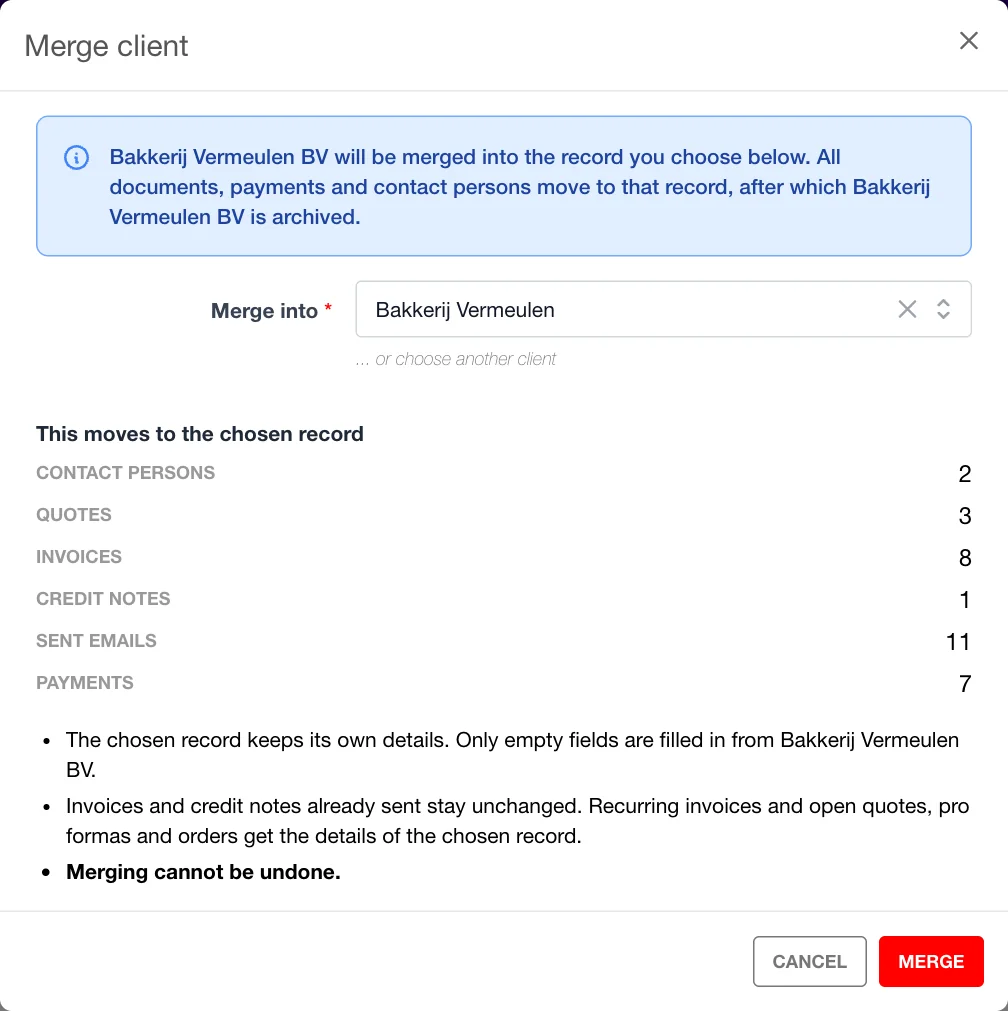
You get a confirmation that the record has been merged. If you started on the detail page, you then land on the record you kept.
If the records don’t have the same VAT number, the window shows the warning Different VAT number. Merging is then only correct if it really is the same customer. In that case the bank account, Peppol details, identification details and links with other software are not copied over.
If you’re sure, tick I confirm this is the same customer and merge at my own risk. Only then can you merge.
When NumNum finds records with the same VAT number, a message appears above your client or supplier list, such as “There are 3 groups of records with the same VAT number. These may be duplicates.”
If they are not duplicates, for example two branches with the same VAT number, click Not duplicates. That group then no longer appears as a possible duplicate.
If there are many groups, you see part of them at a time. The next ones appear once you’ve handled the first.
💡 Tip: With the global search (Ctrl/Cmd+K) you go straight to Merge duplicate clients or Merge duplicate suppliers.
You need the right to edit and delete clients (or suppliers). Because all linked data moves along, you also need edit rights on the modules that hold that data, such as invoices or quotes. If a right is missing, the window tells you which modules are involved. If a record is both a client and a supplier, you need the rights on both.
Yes. Every merge is recorded in your file’s log: who merged, when, which records were involved and what moved. You can’t open that log yourself in the app. The support team can consult it, and so can your accountant or distributor if they manage your file.
Doubts about a merge? Contact us at help@numnum.be.
Want to avoid duplicates when importing? Read How can I import my existing customers?
